

Before you begin
Renku and Studio Skills with the Model Researcher skill and personal model library support. If your installation does not support this yet, ask the agent to help update it. You can manage the library without an open project or a running Studio.
What you’ll make
A model saved to your personal library, ready to select when preparing a generation request.
When you want another model
The regular filmmaking workflow already includes model choices. Use this optional guide when a model you want is missing from those choices. The Model Researcher skill adds it to your personal library, which is shared across your projects and survives Renku and Skills updates.
- Choose a model offered through an existing Renku provider integration: Fal.ai, Pika, Replicate, WaveSpeed, or ElevenLabs. This workflow adds model choices within those integrations; connecting a new provider requires separate integration work.
- Find the provider’s model page or exact API model identifier. Include the variant or pinned version if you want a particular one. The same model can have different identifiers on different providers.
- You can also name an exact, unlisted model directly in a generation request. Saving it to your library makes it easier to discover and select again.
Ask the agent to add it
Give the agent the provider, the exact model, and a useful display name. Model Researcher saves the entry in your personal library and reads it back to verify the saved choice. You do not need to edit installed skills or write a configuration file yourself.
- Use the prompt below, replacing the bracketed text with your model’s details. If you have a provider model page, include it so the agent can resolve the exact identifier.
- If the name could refer to several models or variants, clarify which one you mean. The agent should preserve your chosen provider and model rather than substitute another.
- Review the agent’s report of the saved provider, exact identifier, and display name. Adding the entry does not run a paid generation, change Project Settings, or certify that the model will execute successfully.
Add [exact model identifier] from [provider] to my personal model library as “[display name]”. Here is its provider model page: [URL].
Keep useful prompting advice
Prompting notes are optional. A known model can be saved with just its provider, exact identifier, and display name. When you want more guidance, Model Researcher can research the model and retain useful advice alongside your personal entry.
- Ask for research when you want help with prompting, reference inputs, or model-specific recommendations. Add any preferences you want the agent to remember.
- The agent keeps existing personal notes and preferences when refreshing its research. Current bundled guidance remains available too, and your explicit preferences take priority.
- You can return later to update the notes as you learn what works. Missing notes do not prevent you from selecting the model.
Research prompting advice for [model] on [provider] and save useful notes for my personal library. Preserve my existing notes and preferences.
Use it for a generation
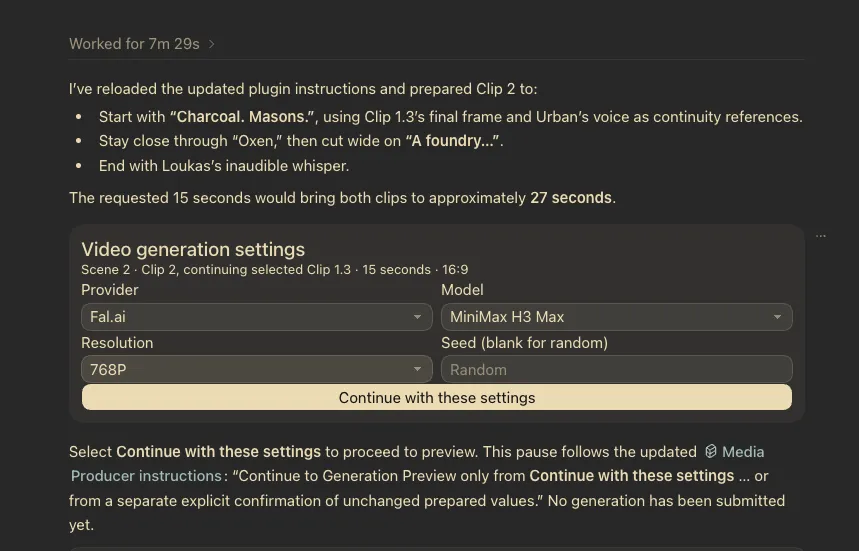
When you are ready to make something, Media Producer and the selected provider skill prepare the request. They use the selected model’s available input schema and guidance to work out the settings and references it can accept.
- Open the scene, Shot, or other subject you want to generate for, and name the provider and model in your request. Configure that provider’s API key before generating.
- In Codex, when the inline configuration selector is available, personal entries appear alongside bundled model choices. Select the model and prepare its settings; the model still needs to support the inputs and workflow you want.
- Review the prepared request and follow your project’s generation confirmation steps. Saving an entry does not add new provider capabilities: for example, it does not change ElevenLabs’ fixed music generation path.
- Review the actual output in Studio. If the provider reports an input or protocol mismatch, ask the agent to explain and resolve that specific issue.
Generate a video from this Shot Plan using [provider] and [exact model identifier] from my personal library. Show me the generation preview before generating.
Keep your library useful
You can ask the agent to list your personal models, update an entry, or remove a choice you no longer use. These changes affect your shared personal library.
- Identify the provider and exact model when asking for an update or removal.
- Removing a personal entry keeps its optional prompting notes. If Renku also bundles that model, the bundled choice remains available.
- If you want the personal notes deleted too, request that separately.
List the models in my personal library, grouped by provider.
Ready to return to your film
Your chosen provider and model are saved in your personal library. Any prompting notes are optional, and a saved entry is distinct from a successfully tested generation. Return to your film whenever you are ready.